
Why use a QR code for a website
A QR code turns a website URL into something a phone camera can read in under a second. That makes it useful anywhere you need to move someone from a physical surface to a web page: business cards, product packaging, event badges, restaurant table cards, slide decks, posters, printed receipts, and shipping labels.
The alternative — asking someone to type a URL — works for short domains but breaks down with longer paths, UTM parameters, or multilingual domains. A QR code sidesteps that friction entirely: scan, tap, arrive.
What a QR code for a website actually stores
A QR code is a container for text. When you encode a website URL, the QR matrix holds that URL as a plain string — nothing more. The code does not store a copy of the page, a screenshot, or any page content. It stores the address.
When someone scans the code, their phone reads the text, recognises it as a URL, and opens it in a browser. The browser then fetches the live page from your server. If you update the page content after creating the code, scanners see the updated content — the QR code itself does not need to change.
This also means the URL must stay live. If you delete the page or change its path without a redirect, the code still scans but the link leads to a 404.
Step 1 — Choose the right URL
Before generating the code, decide which URL to encode:
- Use the final destination URL, not a redirect chain. Each redirect adds latency on mobile. If your marketing page at
example.com/spring-saleredirects toexample.com/offers/2026-spring, encode the final URL. - Keep the URL stable. A QR code on a printed flyer cannot be updated after printing. If the URL is likely to change, consider using a permanent landing page that you control (e.g.,
example.com/go/menu) and redirecting it internally. - Prefer HTTPS. Most modern phones warn users or block navigation to HTTP-only sites. An HTTPS URL avoids that friction.
- Test the URL on a phone first. Open it in Safari and Chrome on a real device. If the page does not load, is not mobile-friendly, or triggers a login wall, the QR code will deliver that same experience.
Step 2 — Generate the QR code
Once you have the URL:
- Open the QR Code Generator.
- Paste the website URL into the content field. The QR code preview updates live as you type.
- Review the default settings. For a website URL QR code, the defaults (error correction M, white background, black foreground, margin 4) work well for most use cases.
- If the code will appear on branded materials, adjust the foreground colour to match your brand palette. Keep the contrast ratio high — dark foreground on light background scans most reliably.
- If you want a logo in the centre, upload it. The generator auto-promotes error correction to H (30% redundancy) when a logo is loaded, which increases the code's tolerance for the partially obscured centre.
- Download the result as PNG for screens and standard print, or SVG for vector-quality output at any size.
Step 3 — Test before distributing
Always scan the QR code before printing or publishing:
- Scan with at least two phones — one iOS, one Android. Camera apps on different devices handle QR codes slightly differently; testing both catches edge cases.
- Confirm the destination loads. A successful scan is not enough. Verify the page renders correctly on mobile, loads quickly, and does not hit a login wall or geo-block.
- Test at the intended print size. QR codes printed smaller than roughly 2 cm (0.8 in) per side are harder to scan, especially with a logo overlay. If the code will appear on a small business card, generate it without a logo and test at that size.
- Check the quiet zone. The white border around the QR matrix (the quiet zone) must not be cropped or overlapped by adjacent design elements. The generator sets a minimum margin of 4 modules — do not trim it in your layout software.
Print sizing and placement
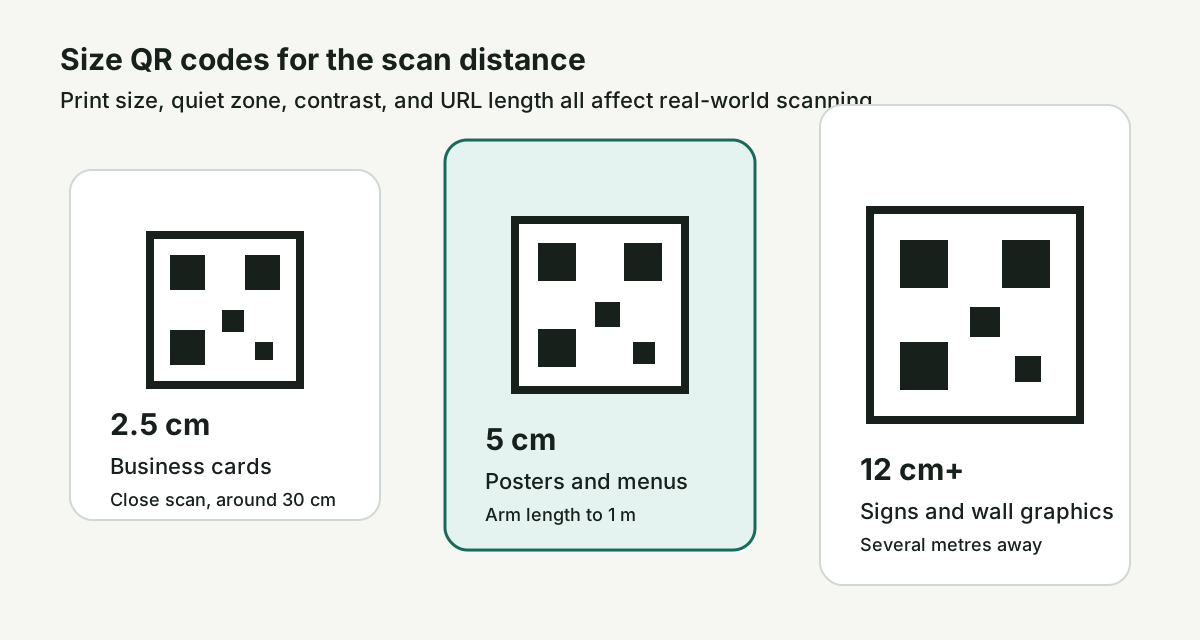
The physical size of the QR code determines how far away it can be scanned:
- 2 cm (0.8 in): scannable from about 15 cm (6 in) — suitable for business cards, small product labels, and receipts.
- 5 cm (2 in): scannable from about 40 cm (16 in) — suitable for table cards, brochures, and packaging inserts.
- 10 cm (4 in) or larger: scannable from over 1 metre — suitable for posters, banners, and signage.
Place the code where it is visible and accessible. Avoid placing it in a fold, near the binding of a booklet, or on a highly reflective surface. Matte finishes scan more reliably than glossy under direct light.
Static vs dynamic QR codes
The QR Code Generator produces static QR codes. The URL is encoded directly into the QR matrix. Once generated, the content cannot be changed without creating a new code.
A static code is the right choice when:
- The URL will not change after the code is printed.
- You do not need to track individual scan counts.
- You want zero ongoing cost and zero account dependencies.
A dynamic QR code uses a short redirect URL that you can update after printing. That is a separate product category — it requires server infrastructure, an account, and usually a subscription. This tool does not produce dynamic codes.
If you need to change the destination after printing, the closest workaround with a static code is to encode a URL you control (like example.com/go/menu) and manage the redirect on your own server.
Common use cases
- Business cards. Encode your website or LinkedIn profile. The recipient scans instead of typing.
- Restaurant menus. Encode a link to a PDF or web-based menu. Update the menu page without reprinting the QR code, as long as the URL stays the same.
- Event materials. Encode a registration page, schedule, or map. Place the code on badges, lanyards, or signage.
- Product packaging. Link to a support page, warranty registration, or user manual. The code outlasts the box if the URL stays live.
- Slide decks and presentations. Add a QR code to a slide so the audience can open a resource without waiting for a follow-up email.
For sharing files rather than web pages, see the companion guide: How to Make a QR Code for a File.
For practical small-business use cases — menus, business cards, review links, and packaging — see QR Codes for Small Business.
For a full overview of the tool — features, settings, and output formats — see the QR Code Generator guide.
 QR Code Generator